If you need to add someone as an admin to your YouTube channel, this guide walks you through the exact steps using YouTube Studio.
YouTube doesn’t officially use the word “admin,” but roles like Manager and Editor provide the access most people are looking for.
This works for most business and brand YouTube channels.
Before You Start
Before adding an admin to your YouTube channel, make sure all of the following are true:
- You are the Owner of the YouTube channel
- The person you’re adding has a Google account
- You are using a desktop or laptop (this process often does not appear correctly on mobile)
If any of these are missing, the Permissions option may not show up.
Step-by-Step — How to Add an Admin to Your YouTube Channel
Follow these steps in order. Each step matches the current YouTube Studio layout.
- Log into YouTube and open YouTube Studio (click your profile in the top right corner)
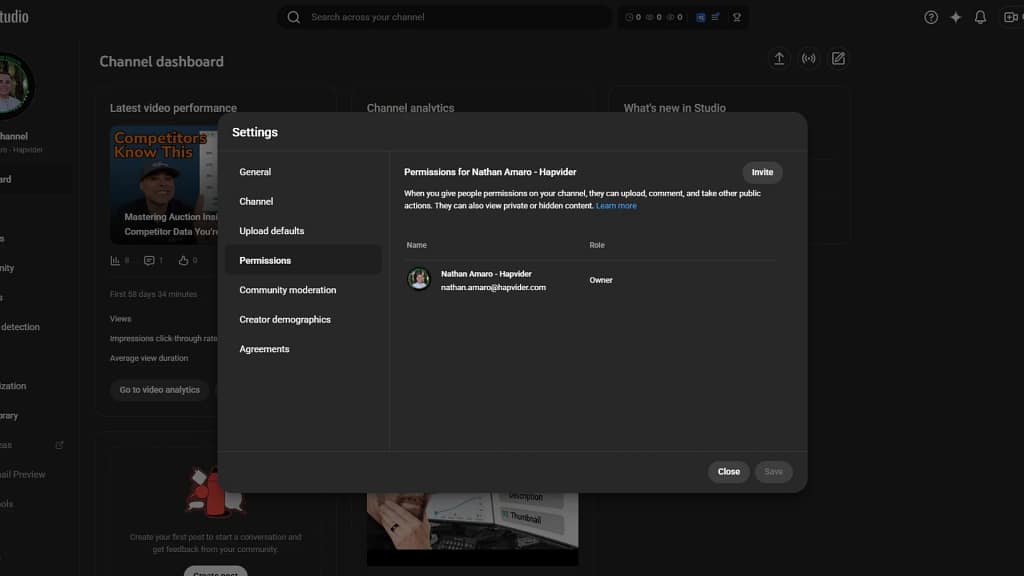
- Click Settings in the bottom-left corner
- Select Permissions
- Click Invite in the top-right area
- Enter the email address of the person you want to add
- Choose the appropriate role (Manager or Editor)
Click Invite and confirm
The person you invited will receive an email and must accept the invitation before access is granted.
Which Role Should I Choose?
YouTube uses different roles instead of a single “admin” setting. Here’s what each one means:
Owner
Has full control of the channel, including adding or removing other users. Only assign this if absolutely necessary.
Manager
Can manage videos, settings, and most channel features. This is the recommended role for agencies or business partners.
Editor
Can upload and manage videos but has limited access to settings and permissions.
For most situations where someone needs admin-style access, Manager is the correct choice.
Common Problems and How to Fix Them
I don’t see “Permissions” in Settings
Your channel may be a personal channel instead of a brand channel, or you may not be logged in as the Owner. Permissions only appear for brand accounts with an Owner role.
They didn’t receive the invite email
Ask them to check spam or promotions folders. If it’s not there, remove the invite and send it again, making sure the email address is tied to a Google account.
My channel is personal, not a brand channel
Personal channels do not support adding users. You’ll need to convert the channel to a brand account before you can add managers or editors.